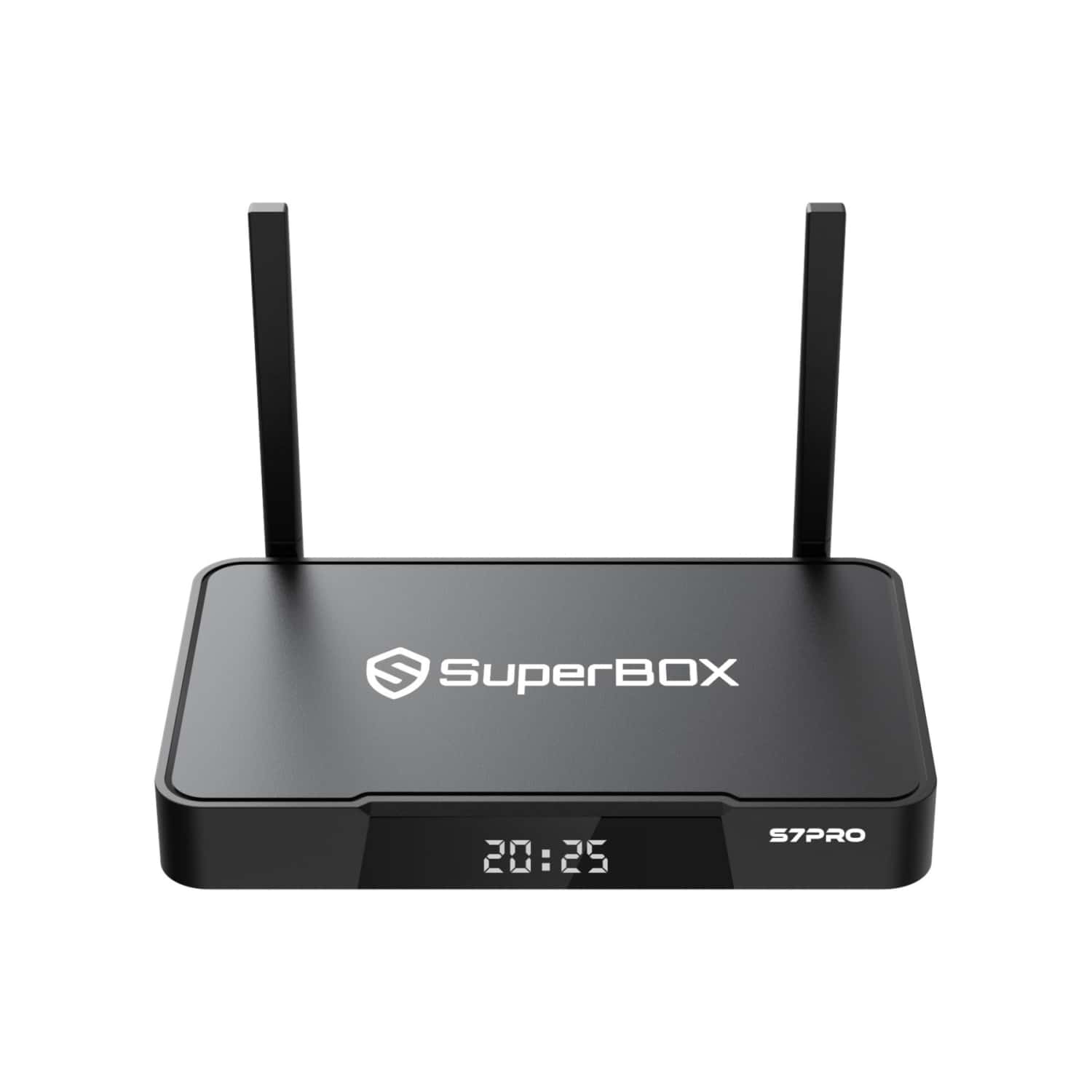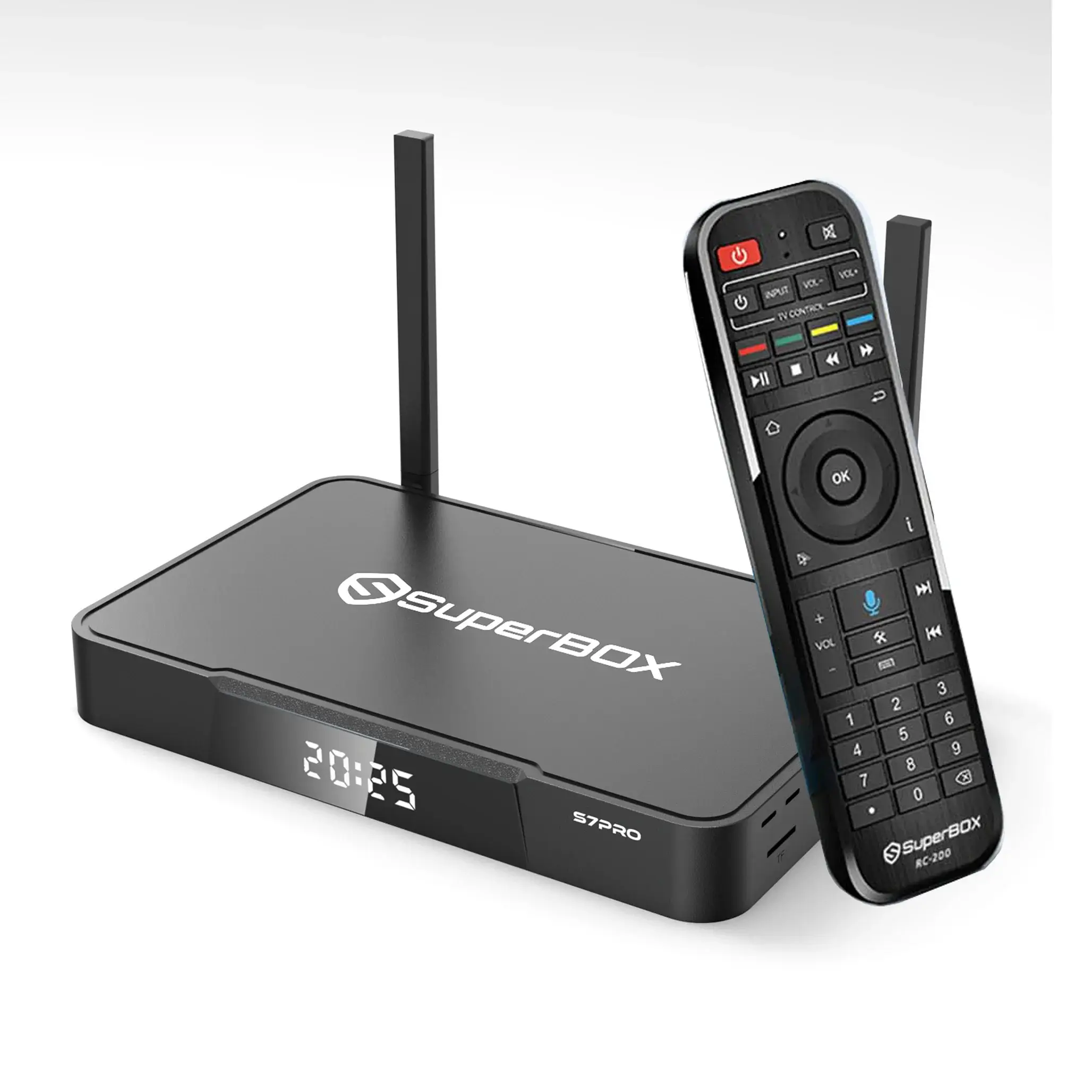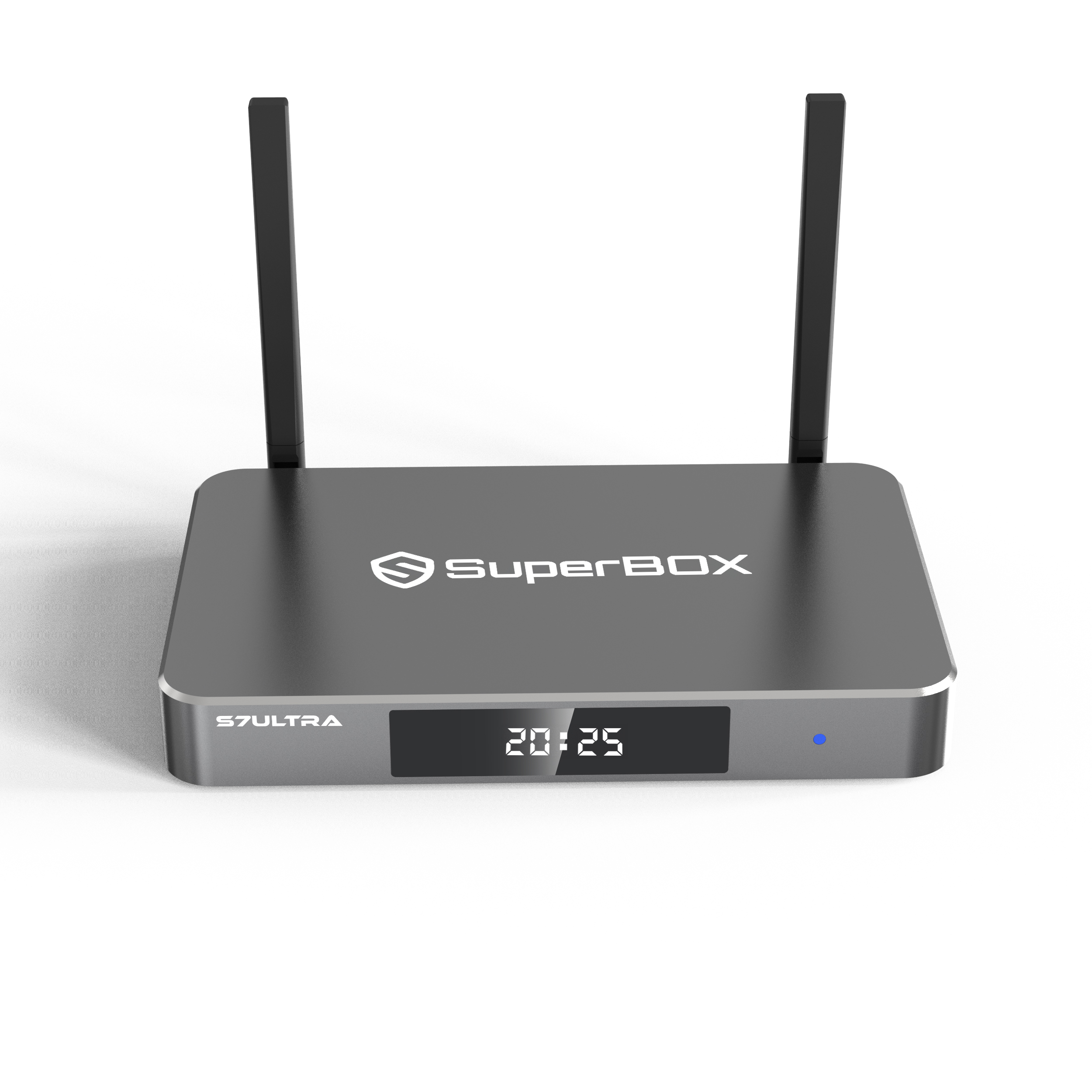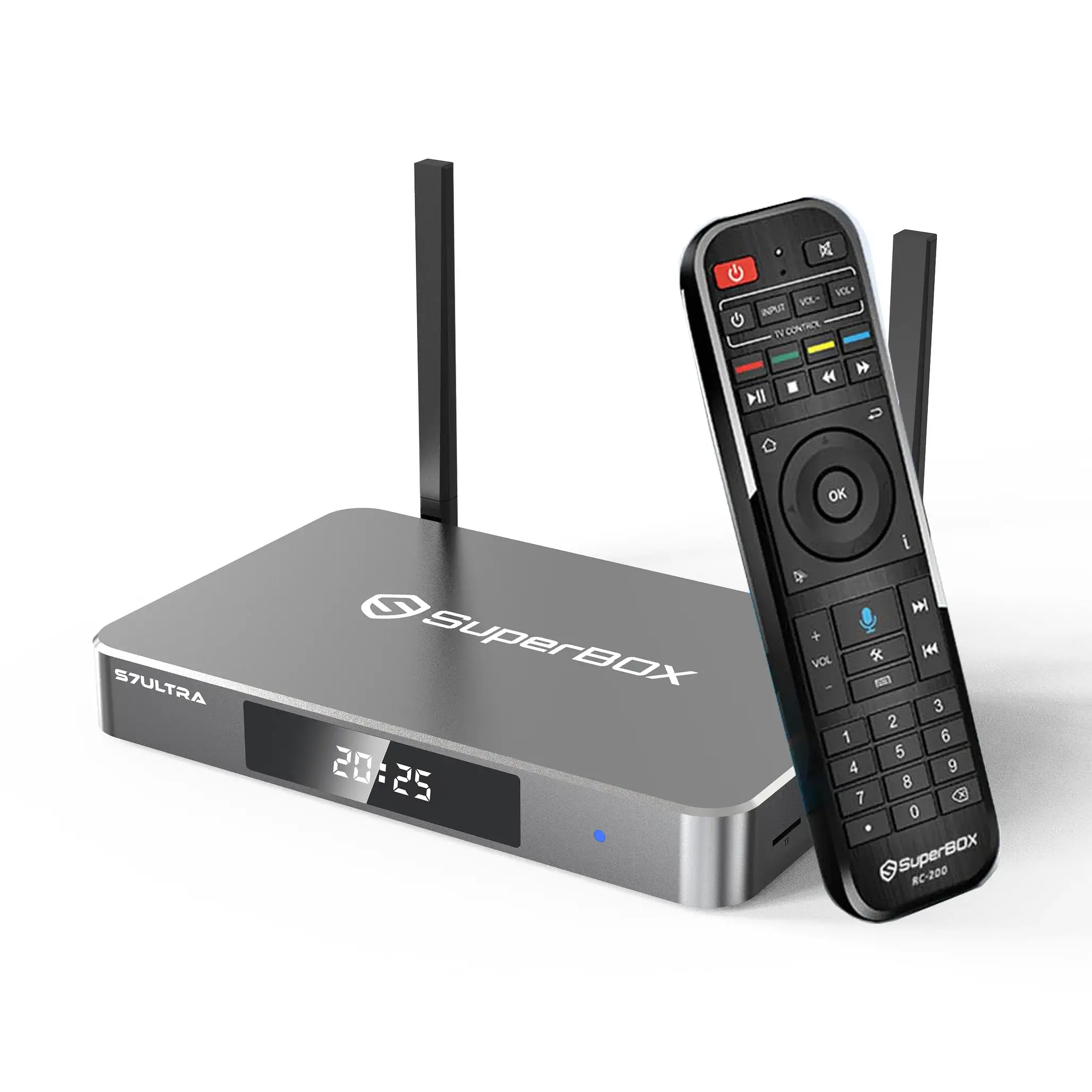
Welcome to SuperBOX! Thank you for purchasing the latest streaming SuperBox S7 series hardware (S7 Pro/S7 Max/S7 Ultra). This device allows you to access the latest movies, sports events, pay-per-view content, and virtually every live channel you can imagine. This content is included with your first purchase of the SuperBox hardware. Our hardware is a one-time payment with no additional fees, and SuperBox offers automatic over-the-air updates. If you're unsure how to use it, please follow these steps to learn how in just a few minutes and start your new world of home entertainment.
How to Setup SuperBox S7 SERIES⬇
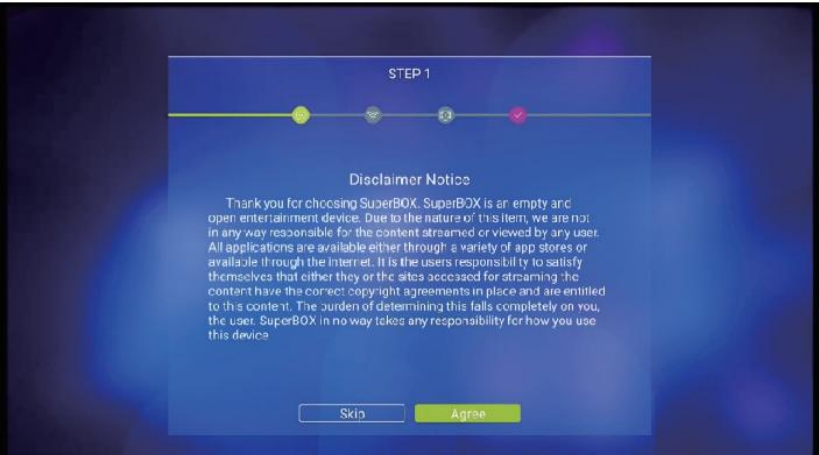
Step 1-Agree to the Disclaimer Notice -(Press [OK])
Step 2-Select your internet connection (Either Ethernet or WiFi)
Step 2A-Ethernet Setup Plug into Router-(Press [OK])
Step 2B-WiFi Setup Select WiFi Network -(Press [OK])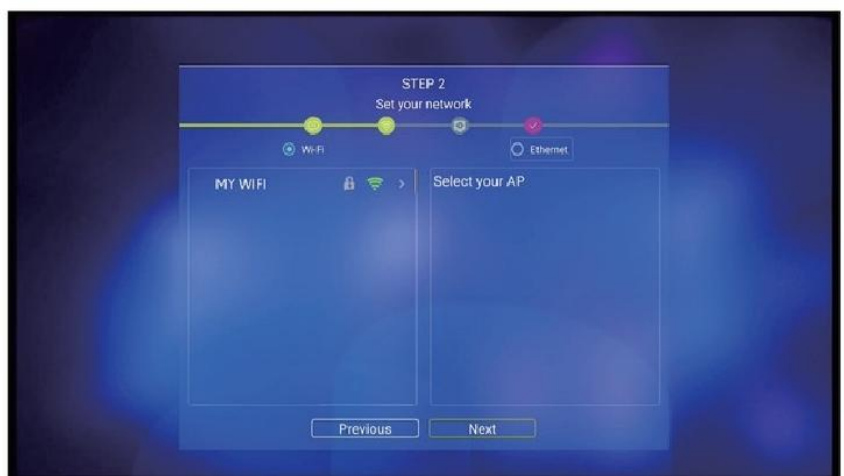
Step 2C-Enter Password (Press [OK]on [Check]to Save) Step 2D-Arrow to Connect (Press [OK]to Connect)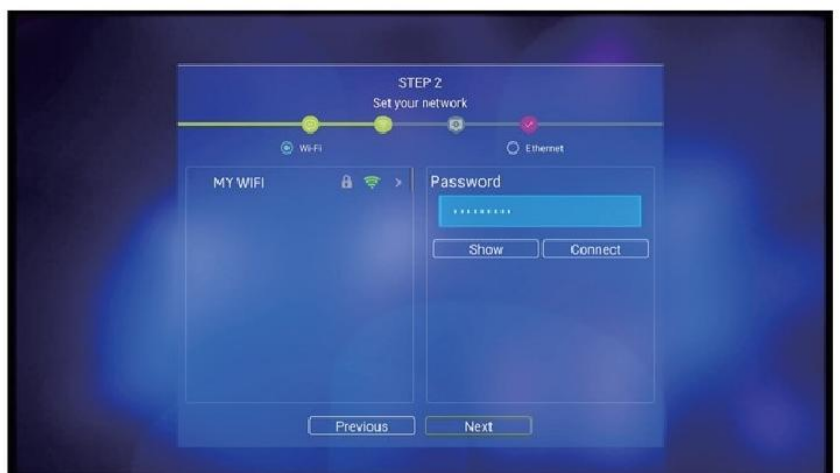
Step 2E-Arrow to [Next](Press [OK]to Finish
Step 3-Adjust Screen to fit your TV
(Use UP/DOWN Arrows to Adjust -Press [OK]on Finish)
Step 4-Pair Bluetooth Remote
Step 4A-Arrow down to Voice icon or Press the [VOICE]button on the Remote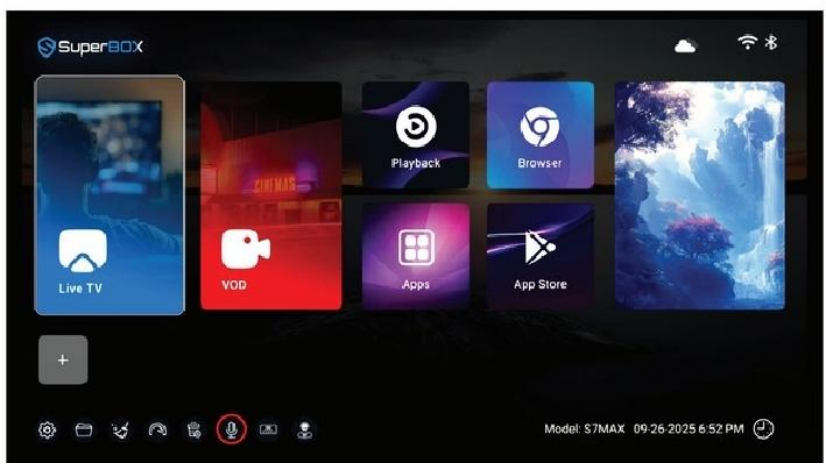
Step 4B-Hold [OK]and [Return]buttons together till indicator flashes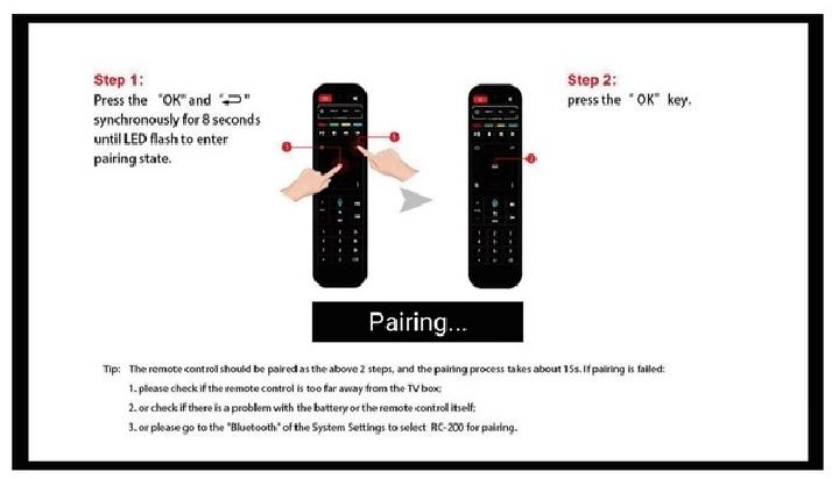
(Press [OK]and [Return]together-[OK])
Step 4C-Press [OK]to finish pairing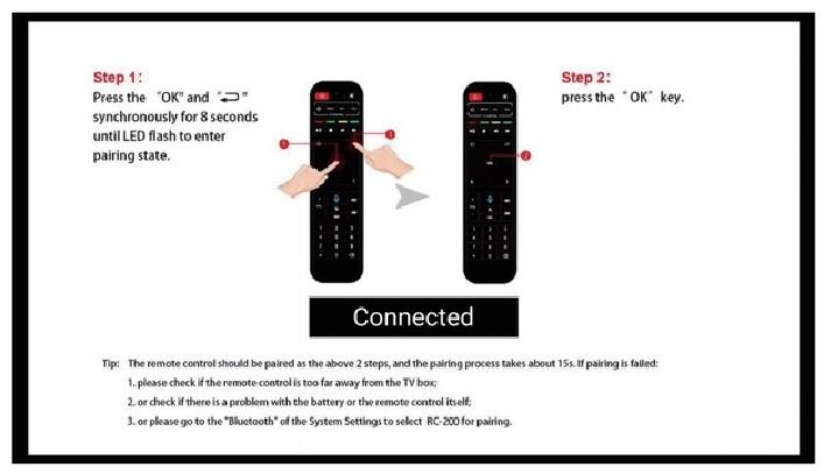
Now the remote turns into Bluetooth mode and you're able to use the Voice Command function
When speak to the remote in the first time,it will pup up the Google Assistant notice,select Sign in or Use Assistant without sign in
Step 5-Download &Install the Blue Apps
Step 5A-Click The App Store on the home screen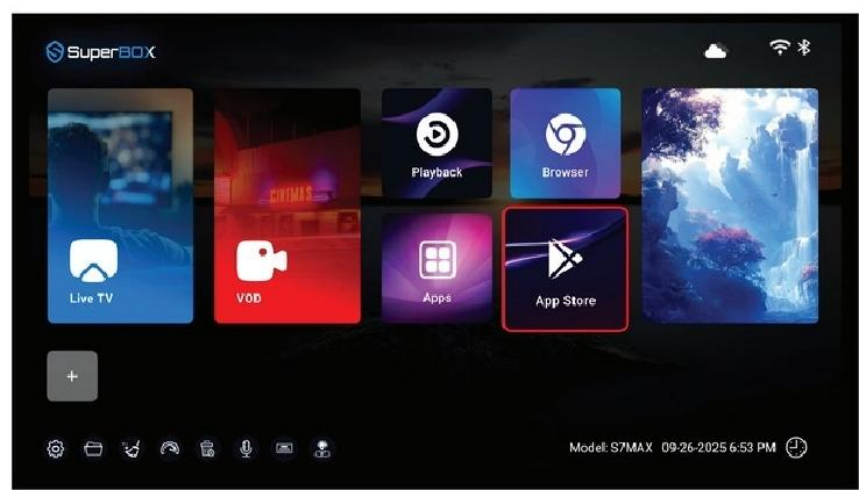
(Press [OK]button)
Step 5B-Arrow Over to [App Store],and wait for a few seconds till the App Store (Not the Play Store)show up
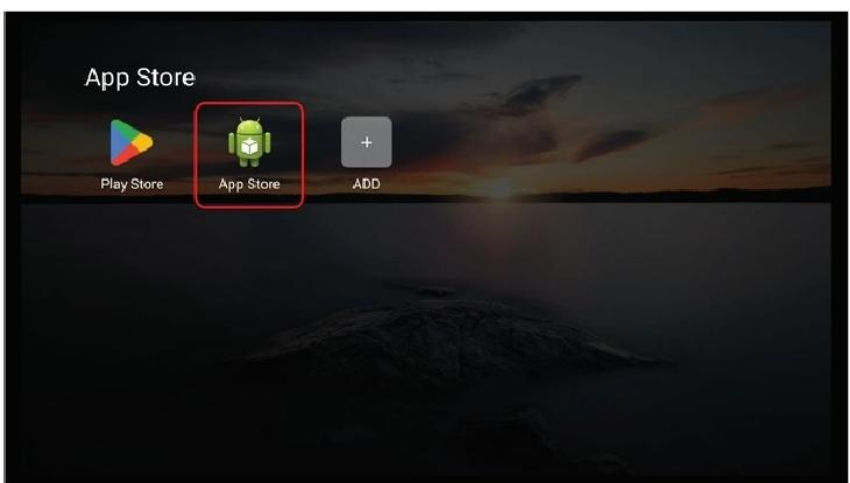
(Ten seconds countdown for the first time)
Step 5C-Click Blue TV,Blue VOD,Playback,Backup TV and other apps you want to install
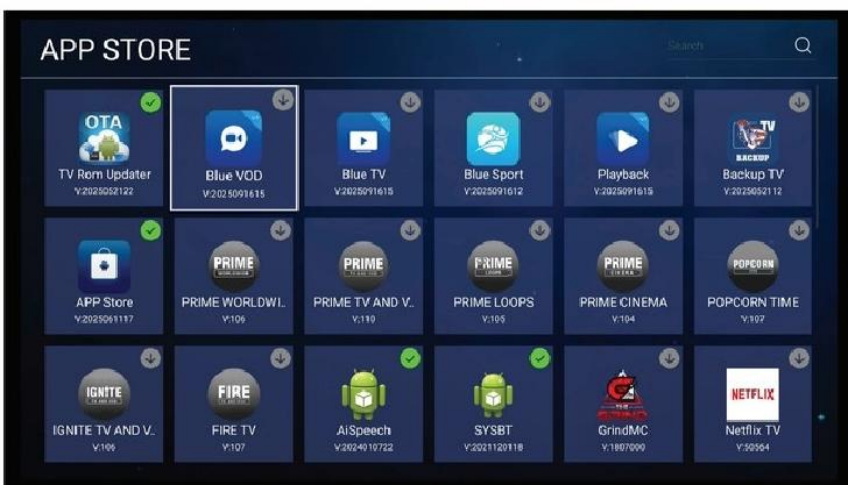 (Wait until all apps been installed)
Step 6-Add apps to Home Screen Shortcuts
Step 6A-Click LIVE TV/VOD/Playback and add corresponding apps
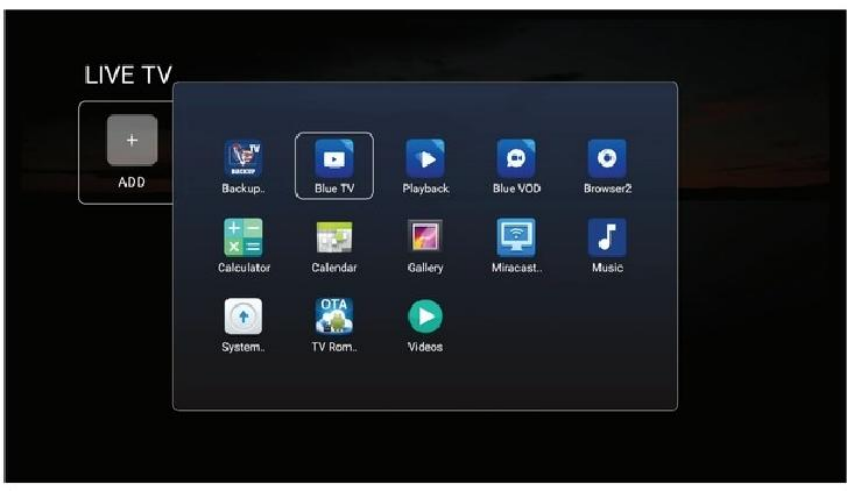
(Select the app,then press [Return])
Step 6B-Arrow over the Shortcut,press [MENU]button on remote to delete the shortcut
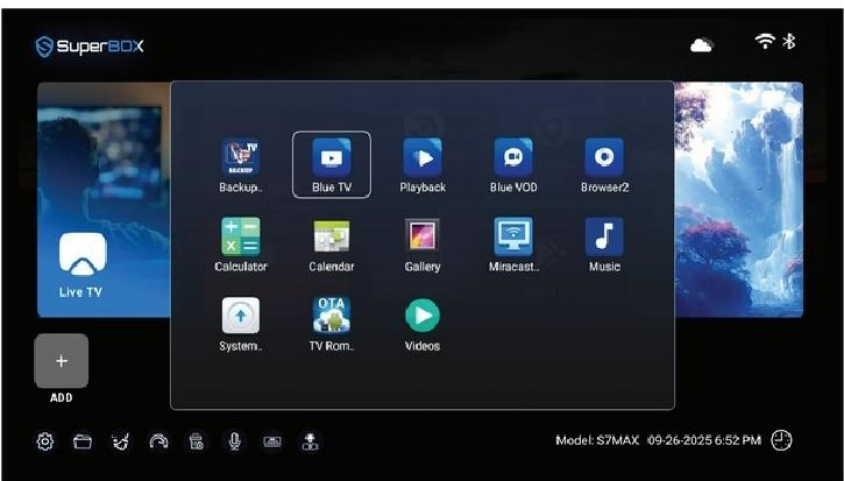
(Select the app,then press [Return])
Voice Command Tips
Tips 1-Speak “TV”,"VIDEO”(or “VOD"),"Playback”to the remote control to open Blue TV,Blue VOD,Playback apps
Tips 2-Search TV channels in Blue TV;Search VOD name,caster,or director in Blue VOD
Tips 3-Search anything on the home screen with Google Assistant
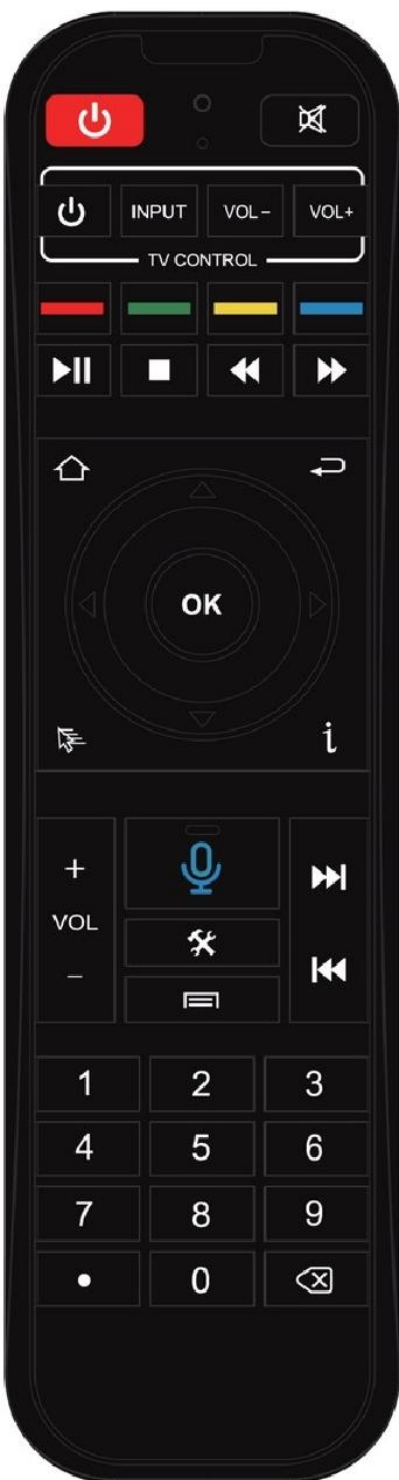
Remote Contro
Button Definition
|
|
Power on/off |
 |
Mute |
|
|
Blue TV |
|
Blue VOD |
|
|
YouTube |
|
Netflix |
|
|
Play/Pause |
|
Stop |
|
|
Rewind |
|
Forward |
|
|
HOME |
|
Return |
|
|
Cursor/IR |
|
Information |
|
|
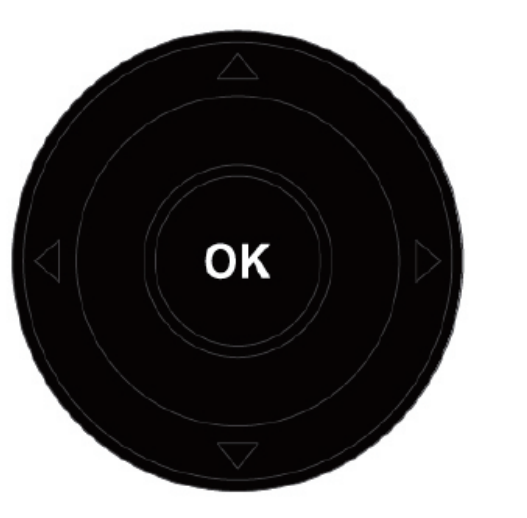
Navigation: Press to navigate Lft/Right/ Up/Down Press OK to confirm your choose |
||
|
|
Volume Up
Volume Down |
|
Next One
Last One |
|
|
Voice Control (Press the button and follow the on-screen instructions for Bluetooth pairing.) |
||
|
|
Settings |
|
Menu |
|
|
Figure Button |
|
Delete |
















For more answers to your questions about SuperBox, please click here. If you encounter any problems during setup or use, please feel free to contact us at support@superbox.center.