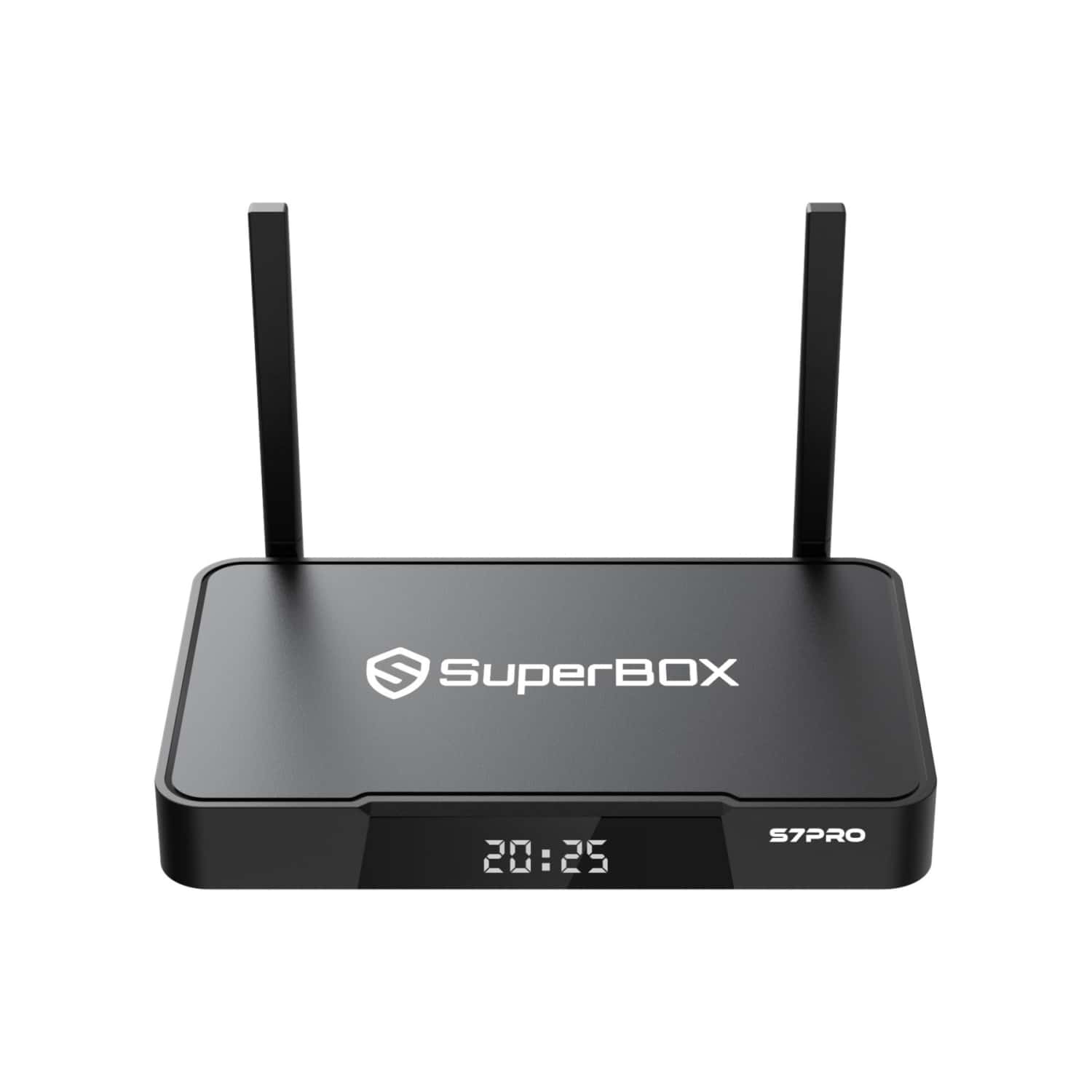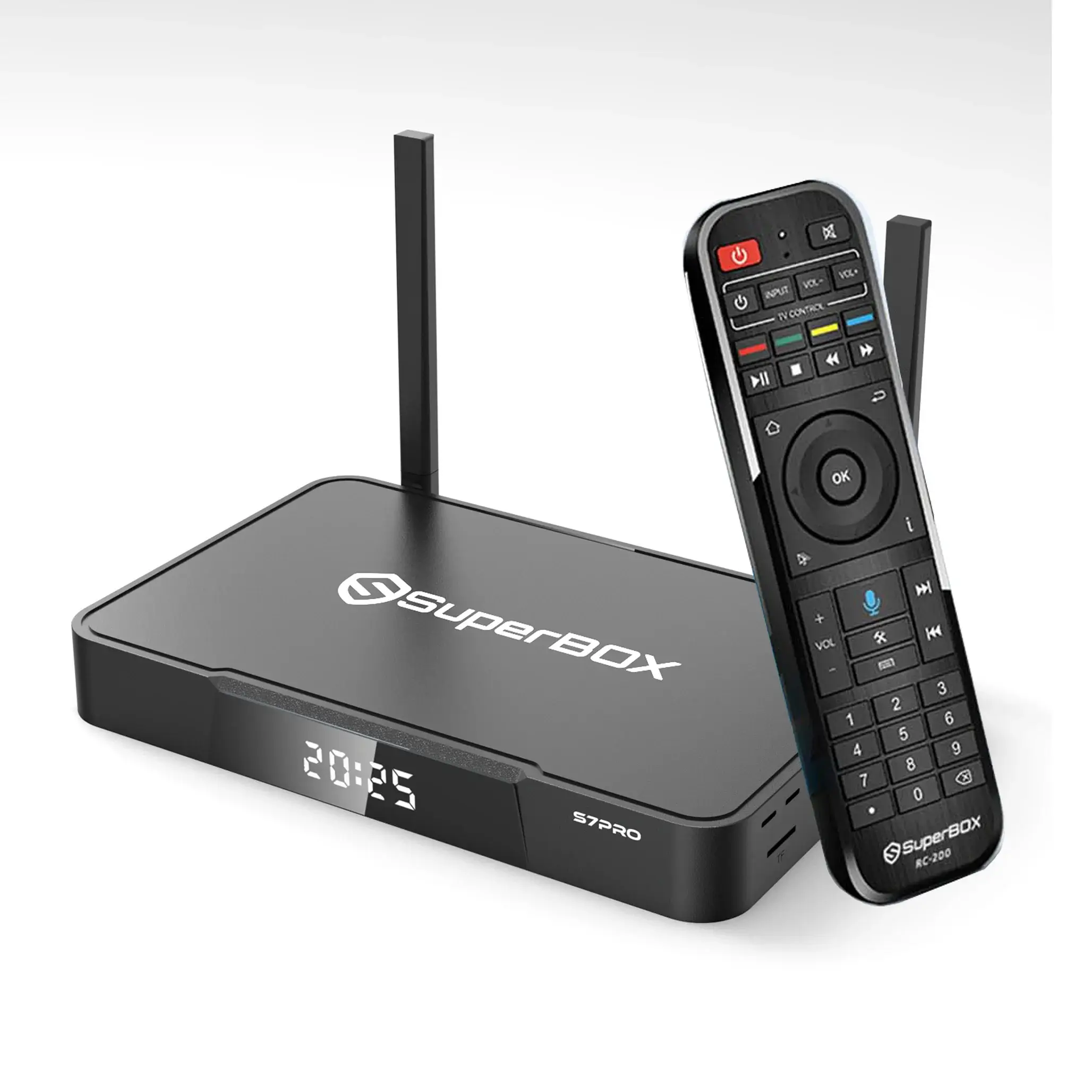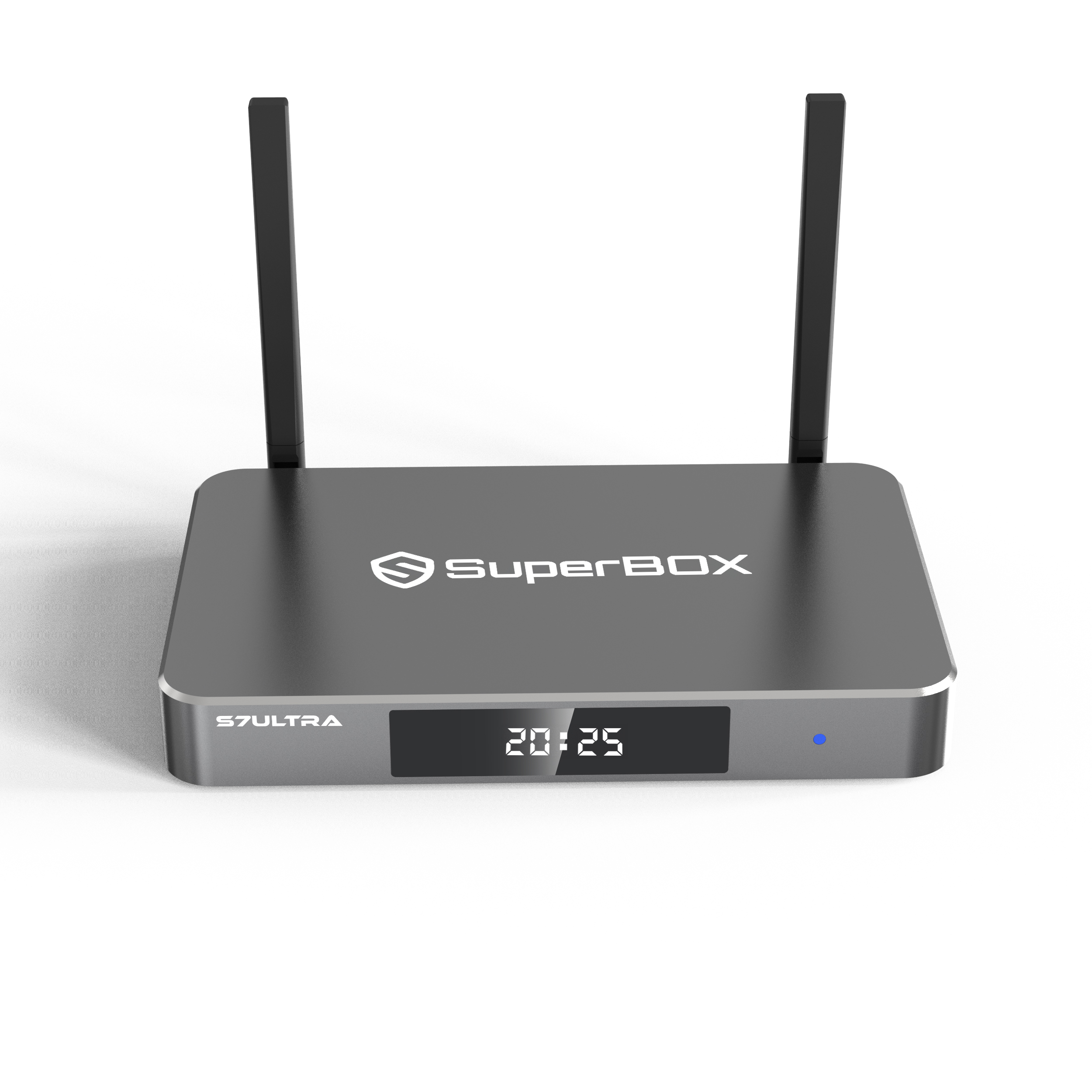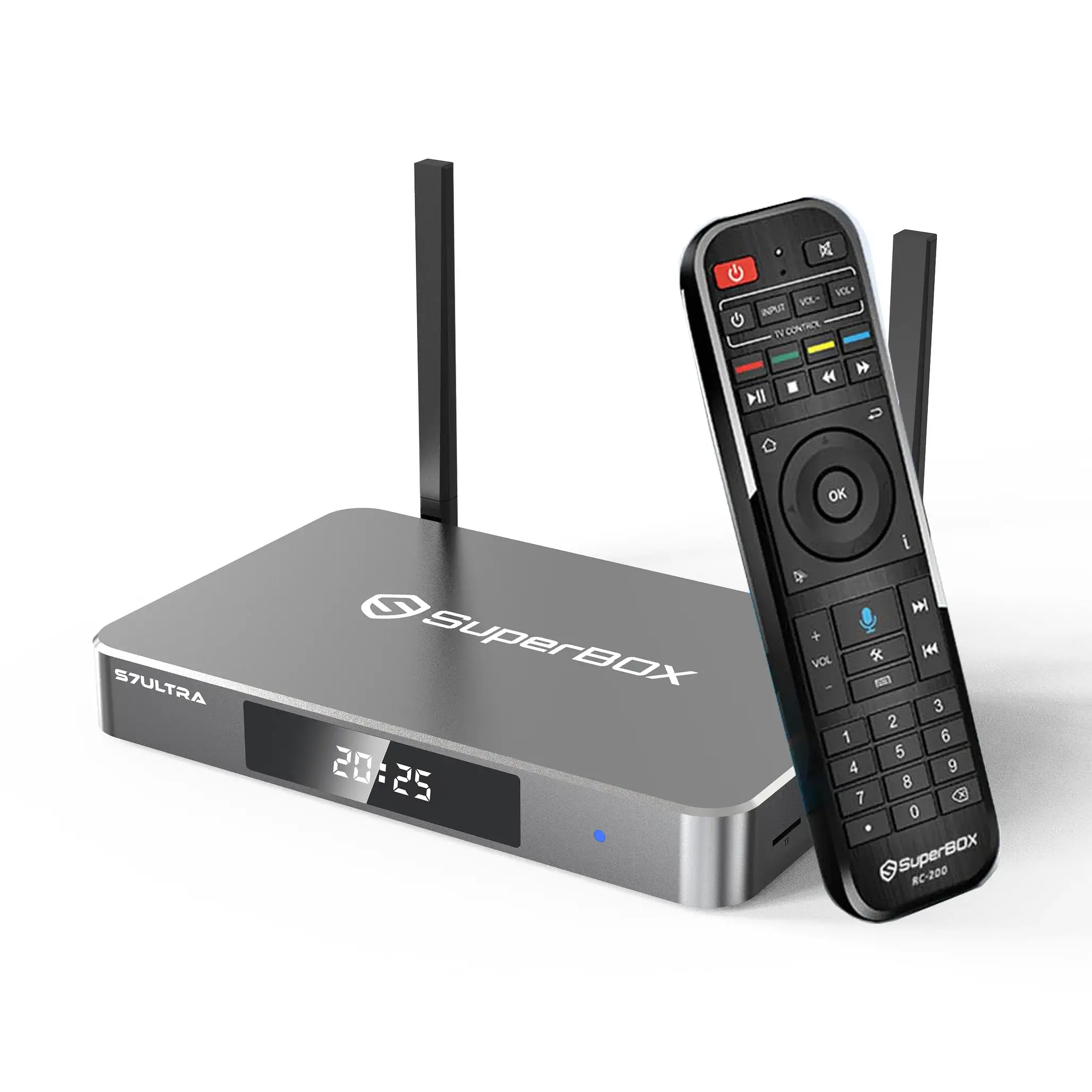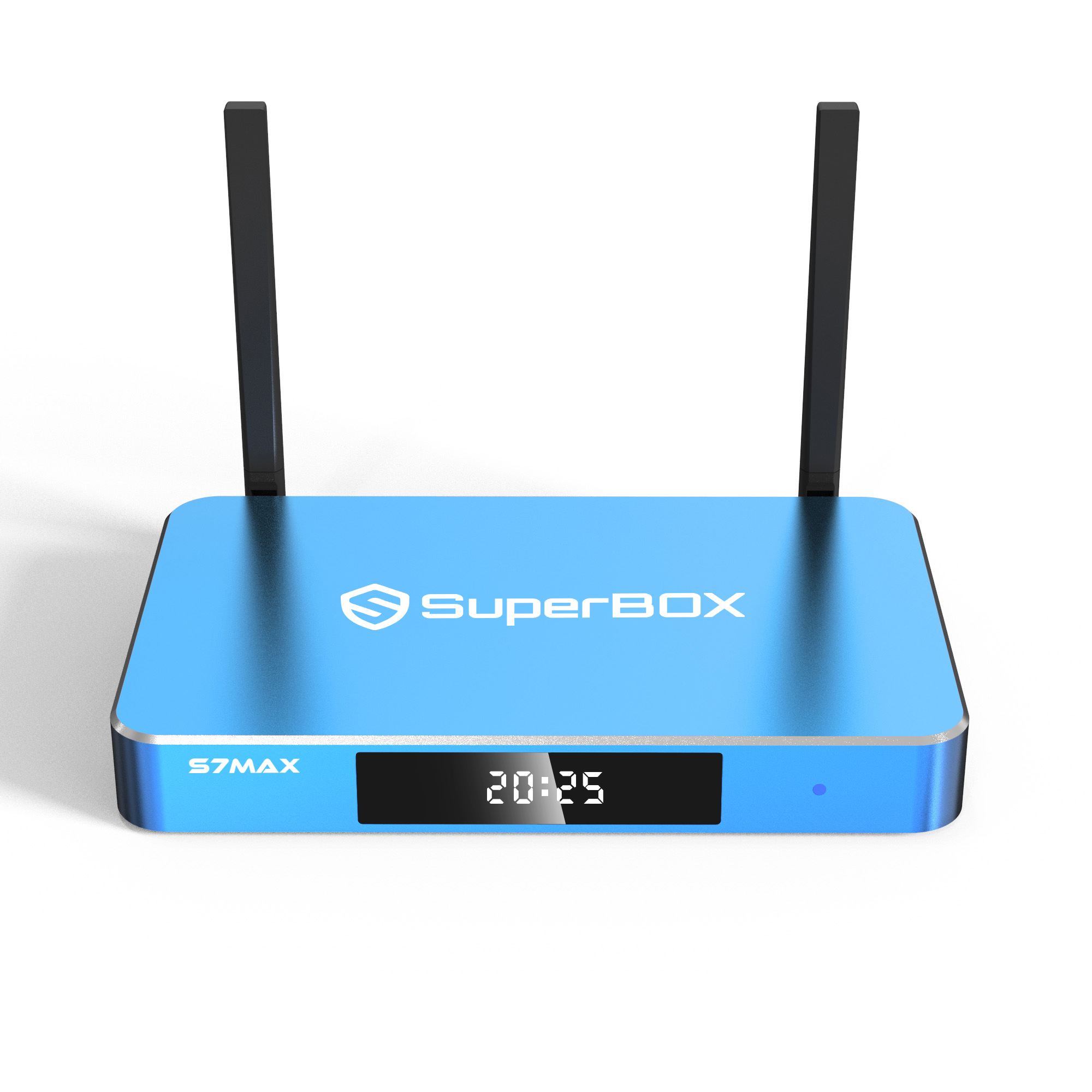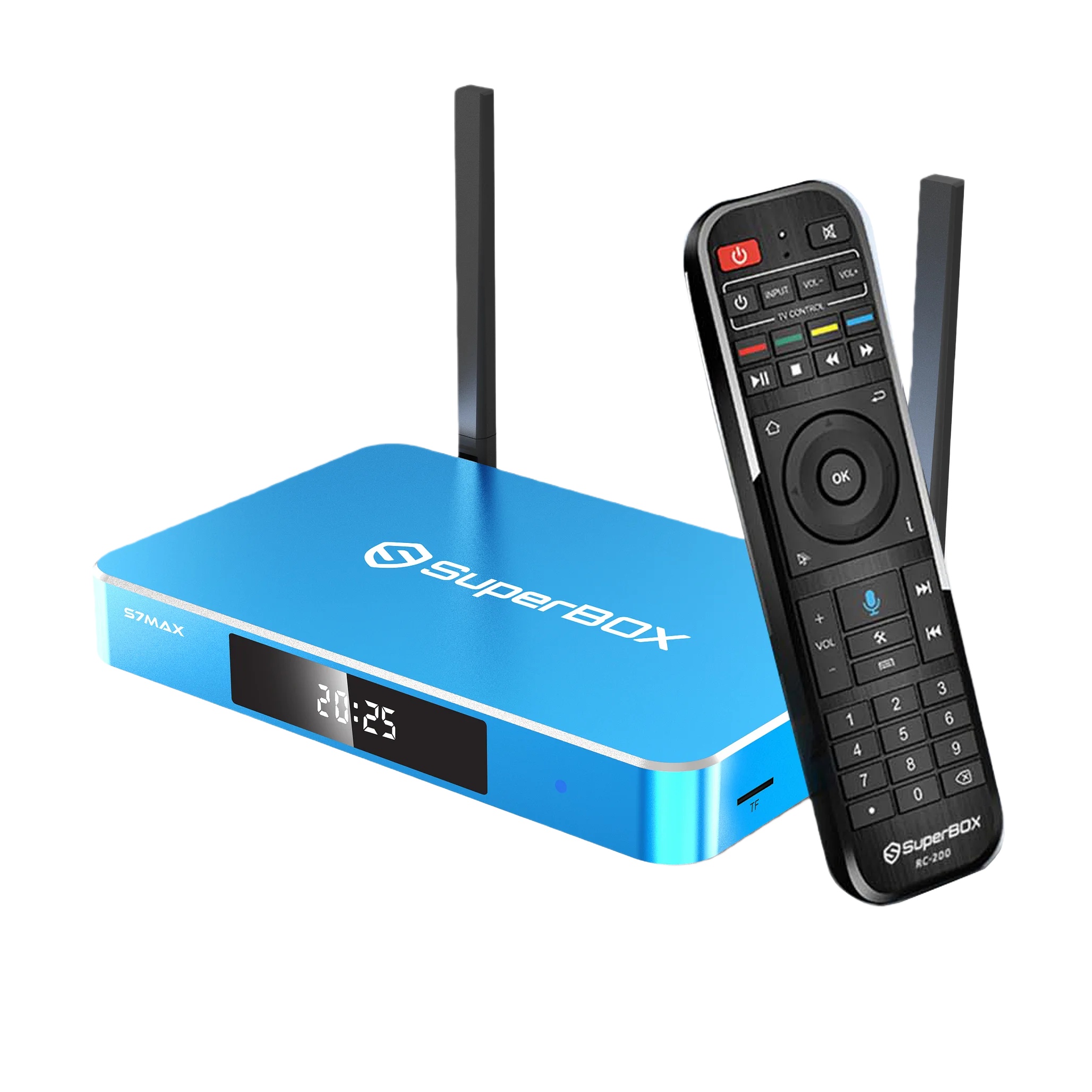

The SuperBox S7 voice remote combines standard navigation buttons, Bluetooth connectivity, voice-control support, and programmable television-control buttons.
This guide explains how to:
- Pair the remote with a SuperBox S7 device
- Program the TV power, volume, and mute buttons
- Use supported voice commands
- Fix common pairing and response problems
- Understand the difference between the S7 Max and S7 Ultra remotes
Quick answer
To activate voice control, keep the remote close to the SuperBox, press the Voice button to open the pairing prompt, and follow the on-screen instructions. On many S7 remotes, this involves holding the OK and Return buttons together until the indicator light begins flashing.
To control your television’s power and volume, use the separate IR learning function. This copies compatible commands from the television’s original infrared remote.
Bluetooth pairing and TV-button programming are two different processes.
Which remote comes with the SuperBox S7 Max and S7 Ultra?
The SuperBox S7 Max includes a standard voice remote.
The SuperBox S7 Ultra includes a backlit voice remote. Its illuminated buttons are easier to identify in a dark room, but its basic navigation and pairing functions are similar to those of the S7 Max remote.
Button layouts, indicator-light patterns, Bluetooth names, and pairing prompts may vary by production batch or software version. Follow the instructions displayed on your television if they differ from this general guide.
Part 1: Pair the Voice Remote with Your SuperBox
Why does the SuperBox remote need Bluetooth pairing?
Bluetooth pairing enables supported voice functions and allows the remote to communicate wirelessly with the SuperBox.
Some basic buttons may work before Bluetooth pairing, depending on the remote model. However, the microphone and voice features generally require a successful Bluetooth connection.
How to pair the SuperBox S7 voice remote
Step 1: Check the batteries
Insert two fresh AAA batteries into the remote.
Confirm that:
- The batteries are installed in the correct direction
- Both batteries have sufficient charge
- The battery cover is securely closed
Weak batteries can cause delayed responses, failed pairing, or intermittent disconnections.
Step 2: Turn on the SuperBox
Connect the SuperBox to your television and power it on.
Wait until the home screen has fully loaded before beginning the pairing process.
Step 3: Keep the remote near the device
Hold the remote close to the SuperBox during pairing.
You do not need to place it directly against the device, but reducing the distance can make the initial Bluetooth connection easier.
Step 4: Open the pairing prompt
Press the button with the microphone or Voice icon.
When the pairing instructions appear on the television, follow the displayed steps.
On many SuperBox S7 remotes:
- Press and hold the OK and Return buttons together.
- Continue holding them until the remote’s indicator light begins flashing.
- Release the buttons when the screen confirms that pairing is in progress.
- Press OK if the television asks you to confirm the connection.
The exact indicator pattern may vary by remote version.
Step 5: Confirm the Bluetooth connection
Open:
Settings → Remotes & Accessories
The menu name may appear as Bluetooth, Connected Devices, or a similar option on some software versions.
Look for a connected remote-control device. Its displayed name may vary by model or production batch.
Step 6: Test the Voice button
Press and hold the Voice button, speak a simple supported command, and then release the button.
For example:
- “Open Settings.”
- “Go to the Home screen.”
- “Open an installed app.”
Voice-command availability depends on the installed application, language, region, account settings, internet connection, and software version.
Part 2: Program the SuperBox Remote to Control Your TV
Is TV-button programming the same as Bluetooth pairing?
No.
Bluetooth pairing connects the voice remote to the SuperBox.
TV-button programming uses infrared learning to copy compatible commands from your television’s original remote. This function is generally used for:
- TV power
- Volume up
- Volume down
- Mute
The programmable TV-control buttons are usually grouped in a marked or white-outlined section near the top of the SuperBox remote.
How to program the TV power and volume buttons
Step 1: Prepare both remotes
You will need:
- The SuperBox remote
- The original television remote
- Working batteries in both remotes
Place the infrared ends of the two remotes facing each other at a short distance.
Step 2: Enter IR learning mode
Press and hold the programmable Power button in the television-control section of the SuperBox remote.
Continue holding it until the indicator light changes from blinking to steadily illuminated.
Release the button when the remote enters learning mode.
Indicator behavior may vary by remote version.
Step 3: Copy the television command
On the television’s original remote, press and hold the button you want to copy, such as Power.
While holding that button, press the corresponding programmable button on the SuperBox remote.
The indicator light should flash to confirm that the command was received.
If the command is not accepted, reposition the two remotes and repeat the step.
Step 4: Program the remaining buttons
Repeat the same process for other supported television controls:
- Volume up
- Volume down
- Mute
Program one button at a time.
Step 5: Exit learning mode
After programming the required buttons, press a button outside the marked television-control section, such as Home or Settings.
The indicator light should turn off.
Step 6: Test the programmed buttons
Point the SuperBox remote toward the television and test:
- Power
- Volume up
- Volume down
- Mute
If one button does not work, repeat the learning process for that button.
Does the SuperBox remote work with every television?
The IR learning function may work with many televisions that use compatible infrared commands.
Compatibility is not guaranteed with every television, remote-control protocol, or button. Some televisions primarily use Bluetooth, radio-frequency controls, or proprietary commands that may not be copied through standard IR learning.
If the learning function does not work:
- Confirm that the original TV remote uses infrared
- Replace the batteries in both remotes
- Move the two remotes closer together
- Align their infrared transmitters
- Repeat the learning process
- Continue using the original television remote when necessary
Part 3: How to Use SuperBox Voice Control
How do I use the microphone on the SuperBox remote?
After Bluetooth pairing:
- Press and hold the Voice button.
- Speak clearly at a normal volume.
- Release the button after finishing the command.
- Wait for the device or compatible application to respond.
Start with short, simple commands.
Examples include:
- “Open Settings.”
- “Go Home.”
- “Open an installed app.”
- “Search within this app.”
- “Pause.”
Not every command works in every application. Playback and search controls are determined by the application or voice-service provider.
Does voice control require internet access?
Many voice features require:
- A Bluetooth-paired remote
- An internet connection
- Microphone permission
- A compatible voice service
- A supported language or region
Some functions may also require a user account.
If the internet connection is unavailable, the remote’s standard navigation buttons may continue working even when online voice processing is unavailable.
Voice-control privacy notice
Voice requests may be processed by the applicable voice-service or application provider according to that provider’s privacy policy.
Before enabling a voice service:
- Review its privacy settings
- Check whether an account is required
- Review microphone permissions
- Avoid speaking passwords or sensitive payment information
- Use only services and applications you trust
Third-party applications and services are independently operated. They may require separate accounts, subscriptions, or payments.
Part 4: SuperBox Remote Troubleshooting
Why is my SuperBox remote not working?
Start with these basic checks:
- Replace both AAA batteries.
- Confirm that the batteries are installed correctly.
- Restart the SuperBox.
- Keep the remote close to the device.
- Re-pair the remote through the on-screen Bluetooth menu.
- Check whether the problem affects all buttons or only certain buttons.
The affected buttons can help identify whether the issue involves Bluetooth pairing, IR programming, batteries, or a specific application.
Why does the remote navigate menus but voice control does not work?
This usually means that the remote can send basic commands but the Bluetooth voice connection is incomplete or the voice service is unavailable.
Try the following:
- Re-pair the remote through Settings
- Confirm that the remote appears as connected
- Restart the SuperBox
- Check the internet connection
- Confirm that microphone access is allowed
- Test the Voice button from the home screen
- Try a different supported command
- Check whether the current application supports voice input
Why do the Power or Volume buttons not work?
The television-control buttons use IR learning and must be programmed separately from Bluetooth pairing.
Try these steps:
- Repeat the IR learning process
- Use fresh batteries in the original TV remote
- Point the two remotes directly toward each other during programming
- Point the SuperBox remote toward the television when testing
- Confirm that the television uses compatible infrared commands
If navigation and voice work but the TV volume buttons do not, the Bluetooth connection is probably working; the IR buttons simply need to be programmed again.
Why do the TV buttons work but the SuperBox navigation buttons do not?
The TV-control buttons may retain their learned infrared commands even when the Bluetooth connection to the SuperBox is lost.
Replace the batteries and repeat the Bluetooth pairing process.
Why is the remote responding slowly?
Possible causes include:
- Weak batteries
- An incomplete Bluetooth connection
- Wireless interference
- The remote being too far from the SuperBox
- A temporary software issue
- Delayed response from the current application
Try:
- Replacing both batteries
- Moving closer to the SuperBox
- Restarting the device
- Re-pairing the remote
- Testing the remote on the home screen rather than inside an application
A delayed application response does not always mean the remote itself is defective.
How do I restart the remote connection?
- Remove the batteries from the remote.
- Unplug the SuperBox from power.
- Wait about 30 seconds.
- Reconnect the SuperBox and allow it to start fully.
- Reinsert the remote batteries.
- Repeat the Bluetooth pairing process.
This procedure does not perform a factory reset or erase installed applications.
What should I do if the remote repeatedly disconnects?
Try the following:
- Install fresh batteries
- Remove the remote from the connected-device list
- Restart the SuperBox
- Pair the remote again
- Move nearby wireless devices farther away
- Confirm that the SuperBox software is up to date
- Test whether the disconnection occurs only inside one application
If the problem continues, contact SuperBox support with:
- Your SuperBox model
- The remote model or a clear photo of the remote
- Your order number
- A description of the indicator-light behavior
- A short video showing the problem, when possible
Do not send account passwords or full payment-card information.
S7 Max vs. S7 Ultra Remote: What Is the Difference?
The S7 Max includes a standard voice remote.
The S7 Ultra includes a backlit voice remote, making the buttons easier to see in low-light environments.
Both remotes are intended to support standard navigation and compatible voice functions. The backlight does not change the SuperBox processor, application compatibility, or internet connection.
Choose the S7 Ultra remote experience when illuminated buttons would be useful. The S7 Max remote remains suitable for users who do not need a backlight.
Frequently Asked Questions
How do I pair my SuperBox S7 remote?
Press the Voice button to open the pairing prompt, keep the remote near the SuperBox, and follow the instructions on the television. On many S7 remotes, you will be asked to hold the OK and Return buttons together until the indicator flashes.
Why is my SuperBox voice remote not working?
The most common causes are weak batteries, an incomplete Bluetooth connection, unavailable internet access, disabled microphone permission, or an application that does not support the requested command.
How do I program the SuperBox remote volume buttons?
Use the IR learning function. Place the original TV remote and SuperBox remote facing each other, enter learning mode on the SuperBox remote, and copy the Volume Up, Volume Down, Power, and Mute commands individually.
Why does my SuperBox remote volume button not work?
The volume buttons may not have been programmed correctly, or the television may use an incompatible control protocol. Repeat the IR learning process with fresh batteries and correctly aligned remotes.
Does the SuperBox remote work with every TV?
No universal compatibility can be guaranteed. The learning function may work with many televisions that use compatible infrared commands.
Does the SuperBox voice remote require Bluetooth?
Bluetooth pairing is generally required for supported voice functions. Some standard buttons may work before pairing, depending on the remote model.
Does voice control require WiFi?
Many voice requests require an internet connection. Basic remote navigation does not necessarily require internet access.
Can I control a soundbar with the SuperBox remote?
The programmable buttons are primarily intended for basic television controls. Soundbar compatibility is not guaranteed. Use the soundbar’s original remote or supported HDMI-CEC functions when appropriate.
What is the difference between the S7 Max and S7 Ultra remotes?
The S7 Max includes a standard voice remote. The S7 Ultra includes a backlit voice remote with illuminated buttons.
Will the pairing instructions be the same for every SuperBox remote?
Not always. Button combinations, indicator lights, and Bluetooth names may vary by remote model and software version. Follow the on-screen instructions for your device.
Where can I get help with my SuperBox remote?
Customers who purchased through SuperBox.center can contact the support team through the official website, live chat, WhatsApp, or support email. Response times may vary according to support hours and request volume.
Final Tips
For the most reliable remote experience:
- Use fresh batteries
- Complete Bluetooth pairing before testing voice control
- Program TV-control buttons separately
- Keep the remote close to the device during pairing
- Use short and clear voice commands
- Remember that commands vary by application
- Review privacy settings before enabling voice services
- Keep your order information for future support
The S7 Max and S7 Ultra remotes are designed to simplify everyday device navigation. Understanding the difference between Bluetooth pairing and IR learning will resolve many of the most common setup problems.